



How to Add HTML Code to Email Templates in AtomEmailPro
AtomEmailPro allows you to create customized email templates using HTML code. If you already have an HTML email design, you can easily import it into the Email Template editor.
Follow the steps below:
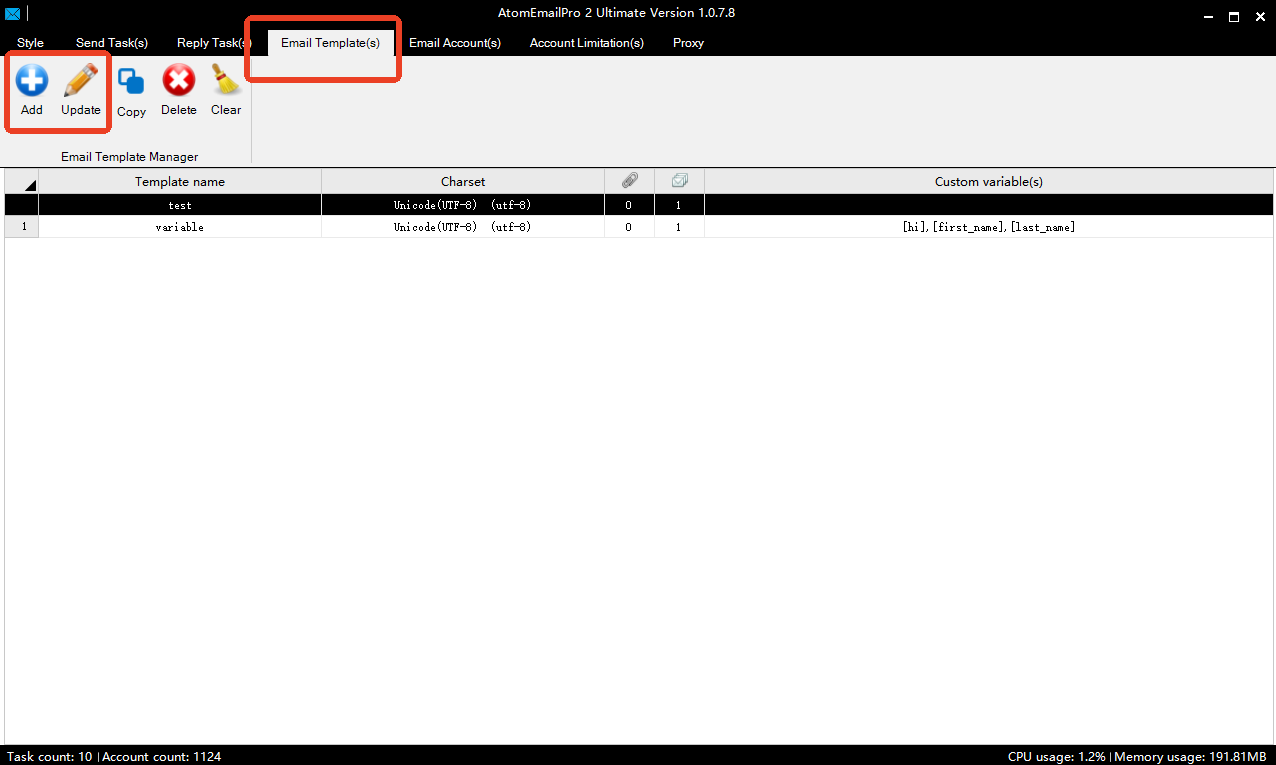
Step 1: Open Email Template Editor
Go to the Email Template section in AtomEmailPro and create a new template or edit an existing one.
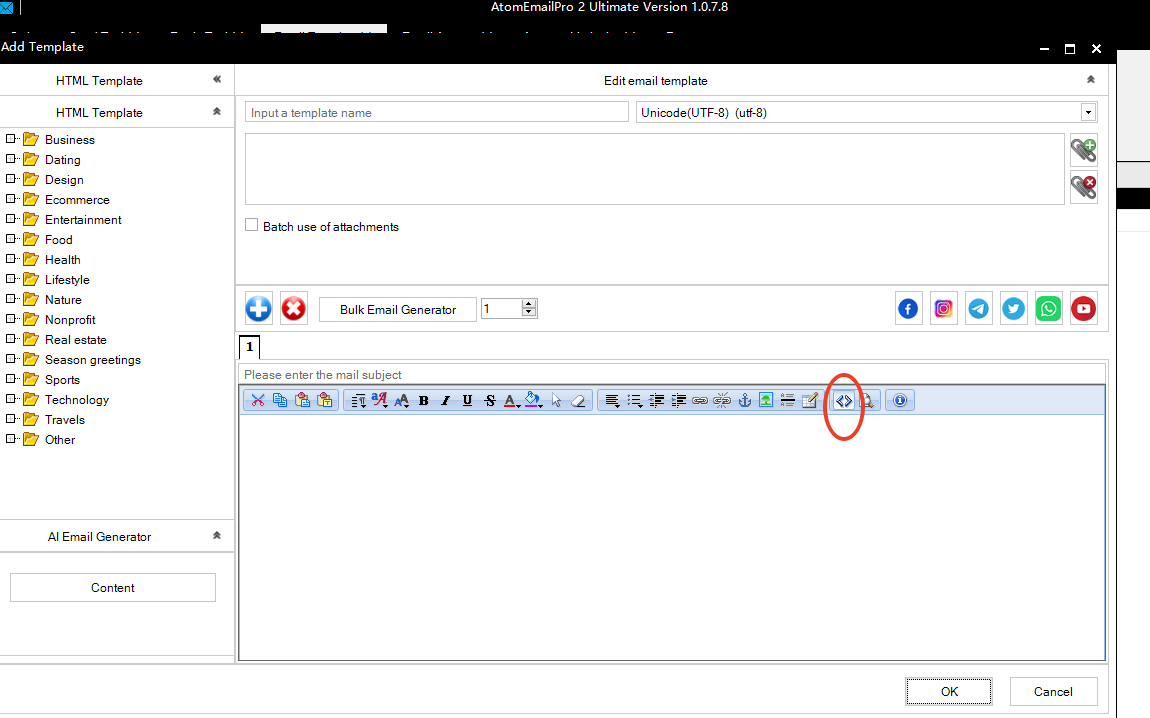
Step 2: Click "Edit Source Code"
In the template editor, click the Edit Source Code button.
Step 3: Paste Your HTML Code
Copy your HTML email code and paste it into the source code window.
Example HTML code:
<table width="100%" cellpadding="0" cellspacing="0" style="font-family: Arial, sans-serif; background:#f5f5f5; padding:20px;"> <tr> <td align="center"> <table width="600" cellpadding="0" cellspacing="0" style="background:#ffffff; padding:30px;"> <tr> <td align="center"> <h1 style="color:#333;">Welcome to AtomEmailPro</h1> <p style="font-size:16px; color:#555;"> This is a sample HTML email template. </p> <a href="https://www.atomemailpro.com" style="background:#007bff; color:white; padding:12px 25px; text-decoration:none; border-radius:5px;"> Learn More </a> </td> </tr> </table> </td> </tr> </table>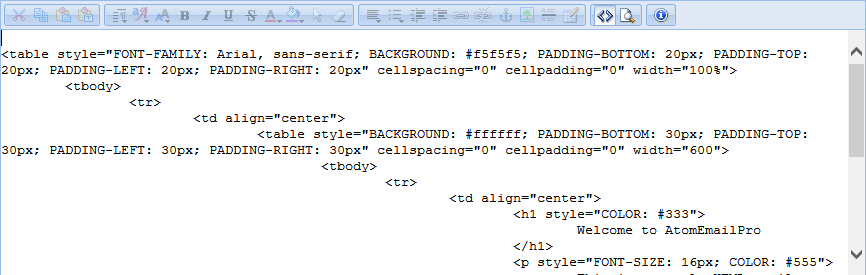
Step 4: Click "Edit Source Code" Again
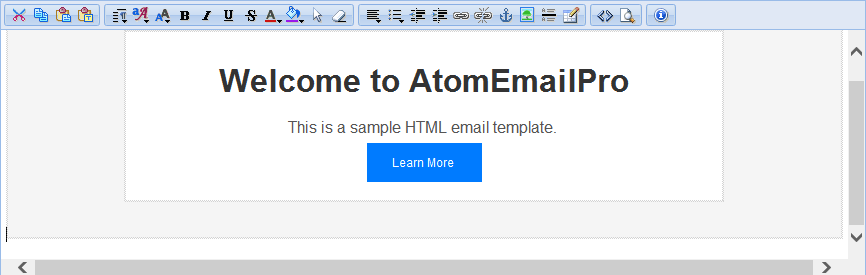
After pasting the HTML code, click the Edit Source Code button again to return to the visual editor.
You will now see your HTML email template displayed in the editor.
Step 5: Save Your Template
After checking the design, save your template. You can now use this HTML email template for your email campaigns in AtomEmailPro.
Tips for HTML Email Templates
- Use inline CSS styles for better email compatibility.
- Keep your email design simple and clean.
- Always test your email before sending to a large number of recipients.
With HTML support in AtomEmailPro, you can easily create professional-looking email templates and customize your email campaigns.