



How to Use Mailgun with AtomEmailPro to Send Personalized Emails with Recipient Variables
Sending emails through Mailgun provides an email sending infrastructure, but what if you need to personalize every email based on information about each recipient?
For example, you may want to address recipients by their first names, mention their companies, include specific product information, or add a unique order number to each message.
Instead of manually editing hundreds or thousands of emails, you can use recipient variables in AtomEmailPro to prepare personalized messages from a reusable template.
In this guide, we'll explain how Mailgun and AtomEmailPro can work together, how to use recipient variables, and how to prepare a personalized email campaign efficiently.
Why Combine Mailgun with AtomEmailPro?
Mailgun and AtomEmailPro serve different purposes in an email workflow.
Mailgun provides email sending infrastructure through SMTP and APIs.
AtomEmailPro is a bulk email sender that supports SMTP sending, email templates, variables, spintax, and sending task management.
When configured correctly, Mailgun can handle the SMTP sending connection while AtomEmailPro helps you organize recipient data, prepare email content, and manage sending tasks.
This combination can be useful when you need to send personalized emails to a large recipient list without manually creating a separate message for every person.
1. Configure Mailgun SMTP Settings
Before creating your email campaign, configure your sending domain and SMTP credentials in Mailgun.
The general setup process includes:
Add and verify your sending domain in Mailgun.
Configure the required DNS records, including SPF and DKIM.
Obtain the SMTP hostname, port, username, and password from your Mailgun account.
Confirm that your account and domain are authorized to send your intended email campaigns.
Next, enter the appropriate SMTP settings in AtomEmailPro, using the configuration fields supported by your version.
Test the connection before launching a larger campaign. A successful connection confirms that the SMTP settings work, but it does not guarantee inbox placement.
2. Prepare a Recipient List with Custom Variables
The first step in personalized email sending is preparing your recipient data.
Instead of importing a list containing only email addresses, include additional fields that can make each message more relevant.
For example, your recipient list might contain the following information:
| first_name | company | city | product | |
|---|---|---|---|---|
| [email protected] | Alex | Northstar | Austin | SEO Software |
| [email protected] | Maria | BrightPath | Miami | Email Automation |
| [email protected] | David | Greenfield | Denver | CRM Software |
These are illustrative records, not real recipients.
Depending on your campaign, you might also prepare fields for last names, job titles, order numbers, appointment dates, or other relevant information.
The field names in this example are illustrative. Make sure your imported data matches the variable names and mapping supported by your AtomEmailPro setup.
The basic principle is simple: prepare the recipient data first, then use the corresponding variables in your email template.
3. Create a Personalized Email Template Using [Variables]
Suppose you want to introduce a product to potential business customers.
A generic email might look like this:
Subject: A software solution for your business
Hi there,
I'm reaching out to introduce our software. It helps businesses manage their marketing activities and improve their workflow.
Would you be interested in learning more?
Best regards,
Your Team
Now, imagine using AtomEmailPro's [variable] format to personalize the subject and body.
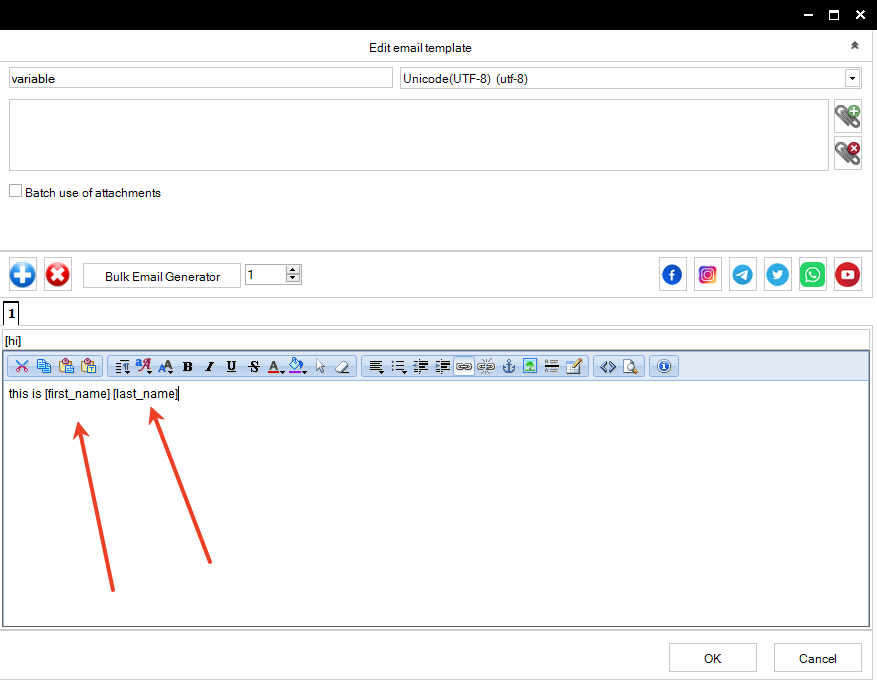
Example personalized email template:
Subject: A software idea for [company]
Hi [first_name],
I wanted to reach out to [company] in [city] because I thought our [product] might be relevant to your business.
If you're looking for a better way to manage your workflow, I'd be happy to share more information.
Would you be interested in learning more?
Best regards,
Your Team
In this example, [first_name], [company], [city], and [product] represent recipient-specific fields.
Use the exact variable names and capitalization supported by your AtomEmailPro configuration, and make sure each variable is mapped to the appropriate recipient data.
For a recipient whose data contains:
first_name: Alexcompany: Northstarcity: Austinproduct: SEO Software
The personalized message would read:
Subject: A software idea for Northstar
Hi Alex,
I wanted to reach out to Northstar in Austin because I thought our SEO Software might be relevant to your business.
If you're looking for a better way to manage your workflow, I'd be happy to share more information.
Would you be interested in learning more?
Best regards,
Your Team
The template stays the same, but the recipient-specific information changes according to the available data.
This makes it easier to prepare personalized messages for many recipients without manually editing each email.
4. Use Multiple [Variables] in One Email
Personalization doesn't have to stop at the greeting.
You can place multiple variables throughout your subject line and email body, provided the corresponding fields are available in your recipient data and supported by AtomEmailPro.
For example, a personalized product introduction could use:
[first_name]to address the recipient.[company]to mention the recipient's business.[city]to add relevant location information.[product]to introduce a specific product.Other supported variables to include additional recipient-specific details.
For customer service or transactional messages, you could prepare fields such as order numbers, appointment dates, or support reference numbers.
Here is another example.
Subject: [first_name], information about [product]
Hi [first_name],
I noticed that [company] may be interested in [product].
I've prepared some information that may help you evaluate whether it fits your needs.
If you'd like to learn more, simply reply to this email.
Best regards,
Your Team
With a properly prepared recipient list, the same template can produce different messages for different recipients.
The key is to keep your variable names consistent with your imported data and avoid using fields that are missing or irrelevant.
5. Combine Mailgun SMTP with AtomEmailPro's Variable Replacement
One important technical detail is that Mailgun's API templates and AtomEmailPro's [variable] syntax are not necessarily interchangeable.
If you configure Mailgun as an SMTP sender in AtomEmailPro, do not assume that Mailgun's API-specific template features will automatically process AtomEmailPro variables.
Instead, verify that AtomEmailPro replaces the relevant [variable] fields with recipient data before the message is sent.
A practical workflow looks like this:
Configure your Mailgun SMTP connection in AtomEmailPro.
Import your recipient list with the required fields.
Create your email template using the supported
[variable]format.Confirm that the variables correspond to the correct recipient fields.
Send test messages to verify the final subject and body.
Review the results before proceeding with a larger campaign.
For example, if your template contains Hi [first_name], the test message should contain the expected first name rather than the literal text [first_name].
This simple check helps identify incorrect field mappings or unsupported variable names before they affect an entire campaign.
6. Why Use AtomEmailPro for Personalized Bulk Email Sending?
When you need to send personalized emails to only a few recipients, manual editing may be manageable.
However, maintaining individual messages becomes increasingly time-consuming as your recipient list grows.
Using reusable templates and recipient variables offers several advantages.
Reusable email templates
Create your email content once and reuse it with different recipient data.
Multiple recipient variables
Personalize different parts of the subject and body using supported [variable] fields.
SMTP sending
Use Mailgun as your SMTP sending service when your account and software configuration support the connection.
Centralized task management
Organize recipient lists, email content, and sending tasks in a repeatable workflow.
Flexible email content
Combine recipient variables with supported HTML formatting, reusable templates, and spintax where appropriate.
These features can help reduce repetitive work while keeping your email campaigns organized.
7. Check These Details Before Sending
Before launching a personalized email campaign, review the following points:
Variable mapping: Confirm that each [variable] corresponds to the intended recipient field.
Missing information: Check how messages will look when a recipient's name, company, or other field is empty.
Message rendering: Test several different recipient records to confirm that the final emails contain the expected information.
Domain authentication: Make sure your Mailgun sending domain is properly configured.
Sending permissions: Follow Mailgun's acceptable-use policies and applicable email marketing laws.
Recipient consent: Use appropriate recipient lists and provide an unsubscribe mechanism where required.
Delivery monitoring: Review available bounce, complaint, and delivery information.
Personalization can make email content more relevant, but it does not guarantee inbox placement. Delivery also depends on sender reputation, authentication, recipient engagement, list quality, and the sending provider's policies.
Final Thoughts
Mailgun and AtomEmailPro can work together in a personalized email sending workflow.
Mailgun provides the sending infrastructure, while AtomEmailPro helps you prepare email content using [variable] fields, organize recipient information, and manage sending tasks.
Instead of manually writing a different email for every recipient, you can prepare one reusable template and personalize it with the appropriate recipient data.
If you're looking for a bulk email sender that supports SMTP sending and personalized email content, AtomEmailPro is worth exploring.
Learn more about AtomEmailPro: https://www.atomemailpro.com/
Start with a small test list, verify your [variable] replacements, and confirm that your Mailgun SMTP connection works as expected before sending a larger campaign.