



How to Send 1-to-Many Emails Through Gmail Browser Automation
Gmail is one of the most widely used email platforms for sales, outreach, customer communication, and email marketing. For many users, browser automation makes Gmail even more useful because it can automate actions directly inside the Gmail web interface.
But there is one workflow limitation that some users eventually run into:
What if you don't want to send one email to one recipient?
What if you want to use the To field and send the same email to multiple recipients at the same time?
For example:
One email → Multiple recipients in To
Instead of:
One email → One recipient
This may sound like a small difference, but it can be important for certain email workflows.
In this article, we'll look at the difference between 1-to-1 and 1-to-many Gmail sending, why browser automation tools often use a 1-to-1 workflow, and what you can do if you need a customized solution.
What Is 1-to-1 Email Sending?
A typical email automation workflow looks like this:
Email → Recipient A
Then the software moves to the next recipient:
Email → Recipient B
Then:
Email → Recipient C
Each recipient receives an individual email.
This approach is useful when you want to personalize every message.
For example:
Hi John,
I noticed your company recently launched a new product...
John receives his own email.
Sarah receives another email:
Hi Sarah,
I noticed your company recently launched a new product...
This is commonly called a 1-to-1 email sending workflow.
It is useful for personalized outreach, sales emails, lead generation, and other situations where every recipient should receive a separate message.
What Is 1-to-Many Email Sending?
A 1-to-many workflow is different.
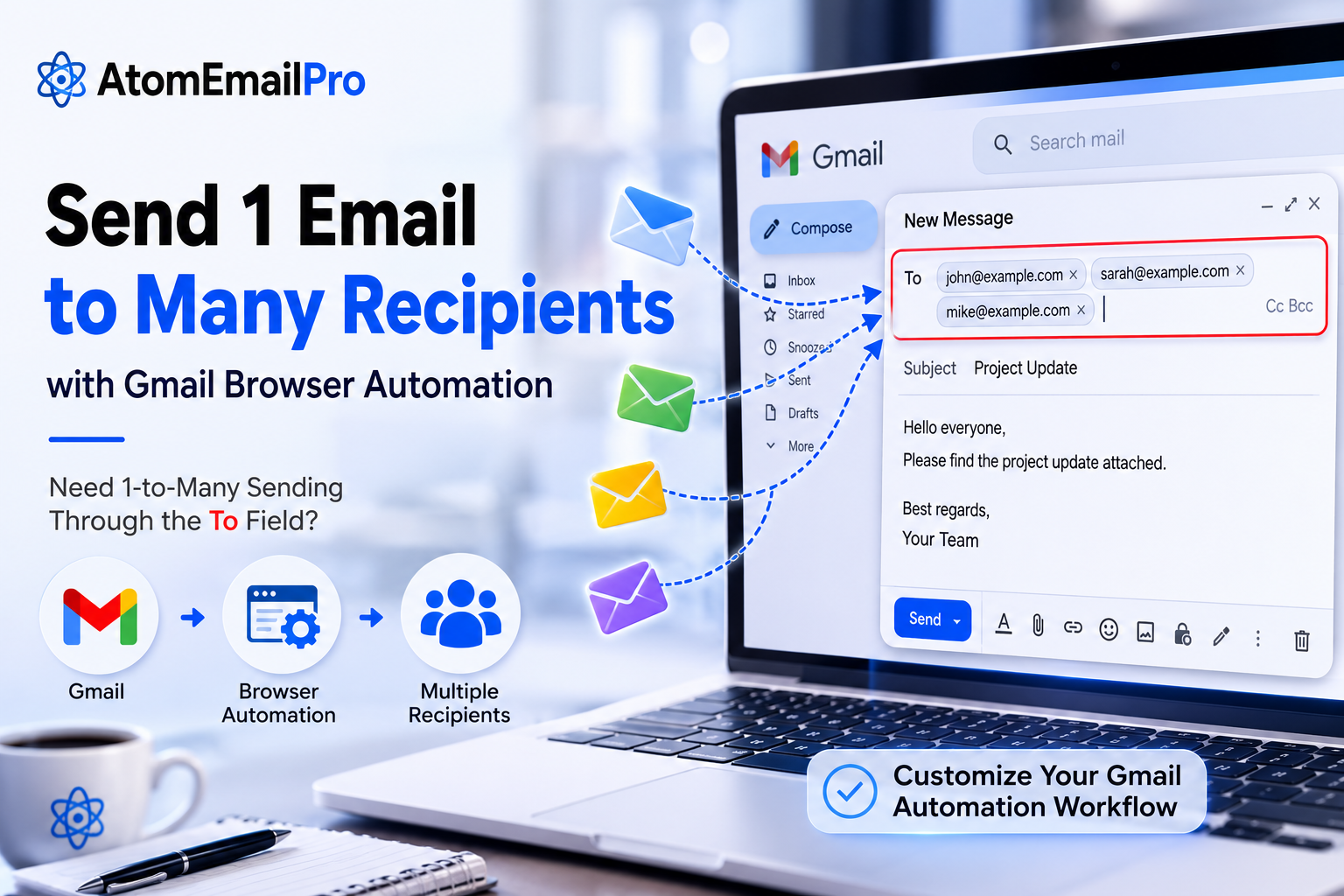
Instead of creating a separate email for every recipient, you put multiple recipients into the To field of the same email.
For example:
To:
[email protected]
[email protected]
[email protected]
Then you write one email and send it once.
The workflow becomes:
One email → Multiple recipients
This can be useful when the recipients are supposed to receive the same message and be part of the same conversation.
For example, you may want to send a project update to several members of a team.
You may also want to send a business announcement to several people who need to see the same message.
In these cases, sending separate emails may not be what you want.
Why Do Gmail Browser Automation Tools Often Use 1-to-1?
If you are using Gmail through browser automation, the automation workflow is usually designed around individual sending actions.
The process may look something like this:
- Open Gmail in the browser.
- Click Compose.
- Enter the recipient.
- Enter the subject.
- Enter the message.
- Send the email.
- Move to the next recipient.
- Repeat the process.
This makes the workflow easy to understand and works well for personalized email sending.
But it also means that the software may be designed around the idea of:
One compose action = one recipient
That doesn't necessarily mean that every user wants to work this way.
Sometimes your workflow requires something different.
What If You Want Multiple Recipients in the To Field?
This is where things become interesting.
Imagine that you are already using Gmail browser automation and everything works well.
You like the workflow.
You like using Gmail directly through the browser.
You don't want to switch to an SMTP-based system.
You don't want to rebuild your entire email process.
But you have one specific requirement:
I want to put multiple recipients in the To field of one email.
For example:
To: [email protected], [email protected], [email protected]
Instead of asking the automation software to create three separate emails, you want it to create one email with three recipients.
That is a completely different workflow.
Why Not Just Use CC or BCC?
A natural question is:
Why not simply use CC or BCC?
Sometimes that works.
But CC, BCC, and multiple recipients in the To field are not always interchangeable from a workflow perspective.
For some users, the To field itself is important.
They may have an existing process that expects the primary recipients to appear in To.
They may also have internal rules, templates, reporting processes, or browser automation steps built around the To field.
So the requirement isn't simply:
"Send an email to several people."
It is:
"Send one email to multiple recipients through the To field using Gmail browser automation."
That distinction matters.
1-to-1 vs. 1-to-Many Gmail Automation
The difference can be summarized very simply.
| Workflow | How it works |
|---|---|
| 1-to-1 | One email → One recipient |
| 1-to-many | One email → Multiple recipients |
| CC | One email → Primary recipient + copied recipients |
| BCC | One email → Recipients hidden from each other |
A 1-to-1 workflow is often better for personalized outreach.
A 1-to-many workflow can be better when multiple people need to receive the exact same email as part of one communication.
The right option depends on the purpose of your email.
Can AtomEmailPro Support a Custom 1-to-Many Workflow?
If you are using AtomEmailPro's browser automation for Gmail, you may already be familiar with the standard 1-to-1 workflow.
But not every user's workflow is the same.
Some users need a more specific setup.
For example:
Standard workflow
Gmail Browser Automation → To → One Recipient → Send
Custom workflow
Gmail Browser Automation → To → Multiple Recipients → Send
If your requirement is the second workflow, a standard configuration may not be enough.
That's where custom development can make sense.
We Can Customize the Gmail Sending Workflow
Software doesn't always need to force you to change your workflow.
Sometimes the better solution is to adapt the software to the workflow you already use.
If you are using AtomEmailPro and need a 1-to-many Gmail sending workflow through the To field, you can contact us and tell us exactly what you need.
For example:
"I want to use Gmail browser automation, but instead of sending one email to one recipient, I want to put multiple recipients in the To field and send one email."
We can review your requirement and discuss whether a customized version can be developed for your workflow.
This can be especially useful if your requirement is very specific and you don't want to replace your existing Gmail workflow just because one feature doesn't work exactly the way you need.
Why Custom Email Automation Can Be Better Than Changing Your Workflow
Every business has a different email process.
One company may need:
One email → One customer
Another may need:
One email → Several team members
Another may need:
One email → Several business contacts
And another may have a completely different workflow.
There is no single email automation model that works perfectly for everyone.
That's why customization can be valuable.
Instead of asking:
"How can I change my workflow to match the software?"
You can ask:
"Can the software be adapted to match my workflow?"
For specialized email automation, that can make a big difference.
Browser Automation Gives You More Workflow Flexibility
One reason some users choose browser-based email automation is that the workflow operates through the actual web interface.
Instead of building an entirely separate email infrastructure, the automation can interact with the browser and perform actions such as opening Gmail, composing messages, entering recipients, and sending emails.
That makes browser automation attractive for users who already rely heavily on Gmail's web interface.
But browser automation also means that the exact workflow matters.
A small change — such as going from one recipient to multiple recipients — can require a different automation logic.
That's why some requirements are better handled as custom development rather than trying to force an existing setting to do something it wasn't designed to do.
Need a Custom Gmail Automation Workflow?
If your Gmail workflow is different from the standard 1-to-1 sending model, don't assume that you need to completely change your email system.
Tell us what you want to automate.
For example:
- Multiple recipients in the To field
- Custom recipient grouping
- Different sending logic
- Customized browser automation steps
- A workflow that doesn't match the standard sending mode
If your requirement is technically feasible, we can discuss a custom development solution for AtomEmailPro.
Your Workflow. Your Requirements.
The goal of automation is simple:
Save time and make your workflow easier.
Your workflow shouldn't always have to change just because a standard software feature works differently.
If you need 1-to-many Gmail sending through the To field while using browser automation, contact us and tell us how you want the workflow to work.
We can discuss a customized solution based on your requirements.
Final Thoughts
Gmail browser automation is useful because it can automate repetitive email tasks directly through the Gmail web interface.
For many users, the standard 1-to-1 sending model is exactly what they need.
But some workflows are different.
If you need:
One email → Multiple recipients in the To field
rather than:
One email → One recipient
then a customized workflow may be the better solution.
Instead of changing your entire email process, you may be able to customize the automation itself.
If you have a specific Gmail browser automation requirement, contact us and tell us what you need.
Your workflow may be more unique than the standard software settings — and that's exactly what custom development is for.